The shift to remote work isn't going anywhere. Whether you're fully remote, hybrid, or running a home-based business, your home network is now critical infrastructure.
A dropped Zoom call, laggy video conference, or slow file upload isn't just annoying — it's unprofessional and costs you time. Here's how to build a home office network that actually works.
The Work-From-Home Network Challenge
Home networks weren't designed for professional workloads. They were built for checking email, streaming Netflix, and browsing social media.
Now we're asking them to handle:
- Video conferencing — Zoom, Teams, Google Meet (high bandwidth, latency-sensitive)
- VPN connections — Secure tunnels to corporate networks
- Cloud applications — Google Workspace, Microsoft 365, Salesforce
- Large file transfers — Design files, video assets, databases
- Screen sharing — Presenting to clients and colleagues
- Multiple simultaneous users — Kids doing homework, partner also working
And we're doing this on the same network that's running smart home devices, streaming to the living room TV, and connecting everyone's phones.
Start with Your Internet Connection
Before optimizing your network, make sure your internet connection is adequate:
Speed Requirements
- Basic office work — 25-50 Mbps download, 5-10 Mbps upload
- Video conferencing — 50-100 Mbps download, 10-20 Mbps upload
- Heavy file transfers/multiple users — 100+ Mbps download, 20+ Mbps upload
Upload speed is often overlooked. Video calls, cloud backups, and file uploads all need good upload bandwidth. Many internet plans have asymmetric speeds (fast download, slow upload).
Test Your Actual Speeds
Run speed tests at speedtest.net or fast.com:
- Test at different times of day
- Test from your actual office location
- Compare to what you're paying for
If you're not getting close to your advertised speeds, the problem might be your ISP, your router, or your WiFi setup.
Wired vs. Wireless for Work
The Case for Wired
For your primary work computer, a wired Ethernet connection is strongly recommended:
- Consistent latency — Critical for video calls
- Reliable bandwidth — No drops during important meetings
- VPN stability — Fewer disconnections
- No interference — Neighbors' WiFi, microwaves, and Bluetooth don't affect you
If your router isn't near your office, we can run an Ethernet cable through your walls for a clean, permanent solution.
When WiFi is Acceptable
WiFi can work for home office use if:
- You have a modern WiFi 6 router
- Your office is close to the router or a mesh access point
- You're on the 5GHz or 6GHz band (not 2.4GHz)
- You don't have heavy interference
But even good WiFi will occasionally hiccup. Wired doesn't.
Recommended Home Office Network Setup
Level 1: Basic (Budget-Friendly)
- Quality WiFi 6 router (replace the ISP's equipment if possible)
- 5GHz WiFi connection for work devices
- Separate your work devices from IoT devices if your router supports it
Cost: $100-$200 for a good router
Level 2: Reliable (Recommended)
- WiFi 6 mesh system for whole-home coverage
- Wired Ethernet to your primary work computer
- Dedicated work VLAN or network segment (if supported)
- UPS (battery backup) for router and modem
Cost: $300-$500 plus installation for Ethernet run
Level 3: Professional (Home Business)
- Business-grade access points
- Wired Ethernet to all work devices
- Managed switch for multiple wired connections
- Dedicated work network separate from home network
- UPS for all network equipment
- Backup internet connection (LTE/5G failover)
Cost: $500-$1,500+ depending on scope
Key Equipment Recommendations
Router/WiFi
Avoid: ISP-provided equipment (usually underpowered)
Consider:
- Budget: TP-Link Archer AX55, ASUS RT-AX58U (~$100-$150)
- Mid-range: TP-Link Deco XE75, Eero Pro 6E (~$250-$400)
- Professional: Ubiquiti UniFi, TP-Link Omada (~$300-$800)
Network Switch
If you need multiple wired connections:
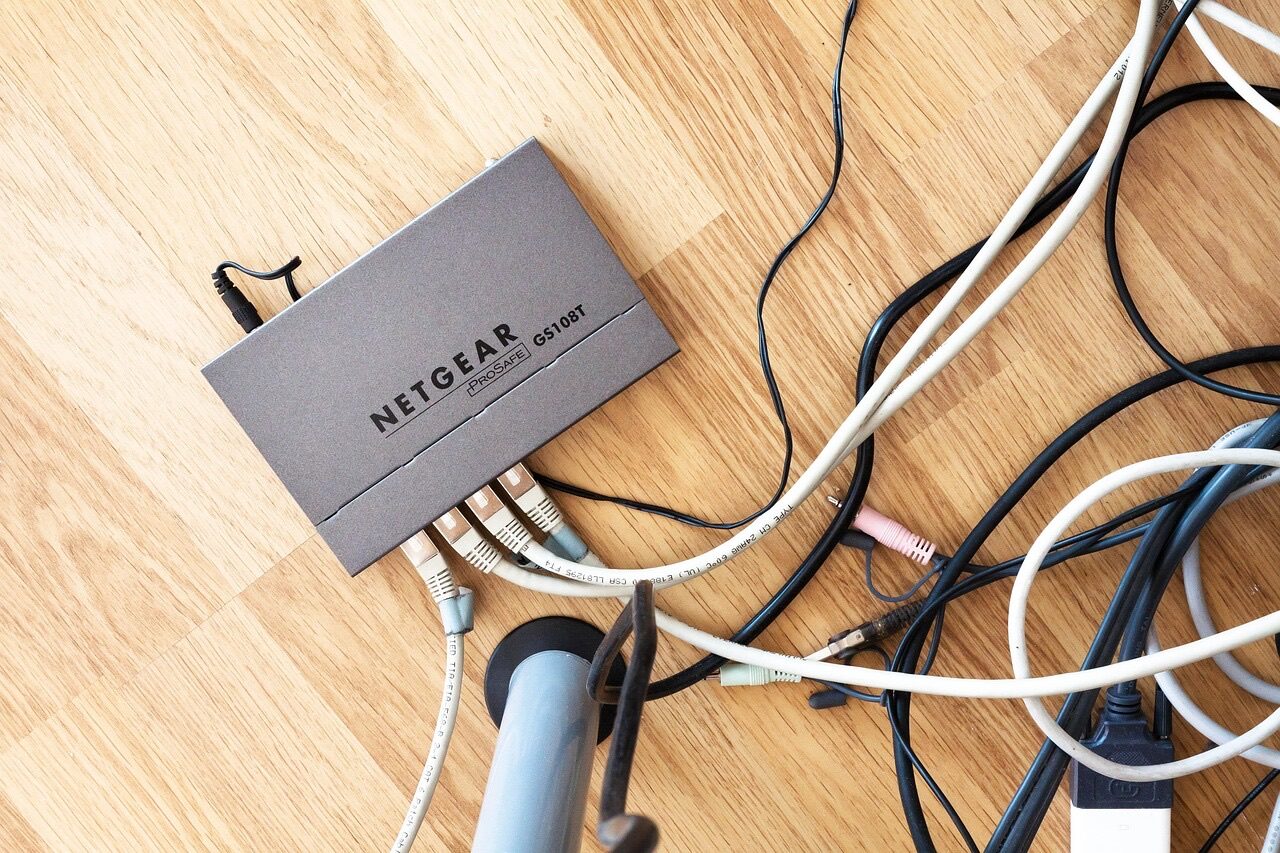
- Basic: Unmanaged 5-8 port gigabit switch (~$20-$40)
- Better: Managed switch with VLAN support (~$50-$150)
UPS (Battery Backup)
A UPS keeps your network running during brief power outages and protects equipment from surges:
- For router/modem: 350-500VA unit (~$50-$80)
- For router, modem, and computer: 1000VA+ unit (~$100-$200)
Video Conferencing Optimization
Video calls are the most demanding and visible part of remote work. Optimize for them:
Bandwidth Prioritization (QoS)
Many routers support Quality of Service settings that prioritize certain traffic. Set video conferencing applications as high priority.
Reduce Competition
Schedule large downloads and backups for off-hours. Ask family members to avoid bandwidth-heavy activities during important calls.
Wired Connection
Did I mention this already? A wired connection makes the biggest difference for video call quality.
Backup Plan
Have a mobile hotspot ready for critical meetings. If your home internet fails, you can switch to cellular.
Separating Work and Home Traffic
If you have a busy household, consider separating work traffic from home traffic:
Guest Network
Put home devices (smart TVs, kids' tablets, IoT devices) on your router's guest network. This keeps them separate from your work devices.
VLANs
More advanced routers support VLANs (Virtual Local Area Networks), which create truly separate networks on the same equipment.
Separate Access Points
In some cases, a dedicated access point for your office makes sense.
Security Considerations
Working from home means your home network is now handling potentially sensitive business data:
- Keep firmware updated — Router vulnerabilities are common
- Use strong WiFi passwords — WPA3 if your devices support it
- Enable your firewall — Most routers have one; make sure it's on
- Use your company VPN — When required by your employer
- Separate IoT devices — Smart home devices are often insecure
What We Install for Home Offices
At Finally Fixed Home Services, we help remote workers build reliable networks:
- Ethernet runs — Wired connections from router to office
- Access point installation — Better WiFi coverage where you need it
- Network equipment setup — Routers, switches, and mesh systems
- Cable management — Clean, professional office appearance
- WiFi optimization — Getting the most from your current setup
The Productivity Payoff
A reliable home office network isn't glamorous, but it pays dividends every day:
- No more apologizing for frozen video
- Faster file uploads and downloads
- Fewer VPN disconnections
- Less frustration, more focus
- Professional impression on video calls
The investment in a proper setup is small compared to the value of your time and professional reputation.
Contact us or call/text 720-933-3501 to discuss your home office network needs.
Related Posts: